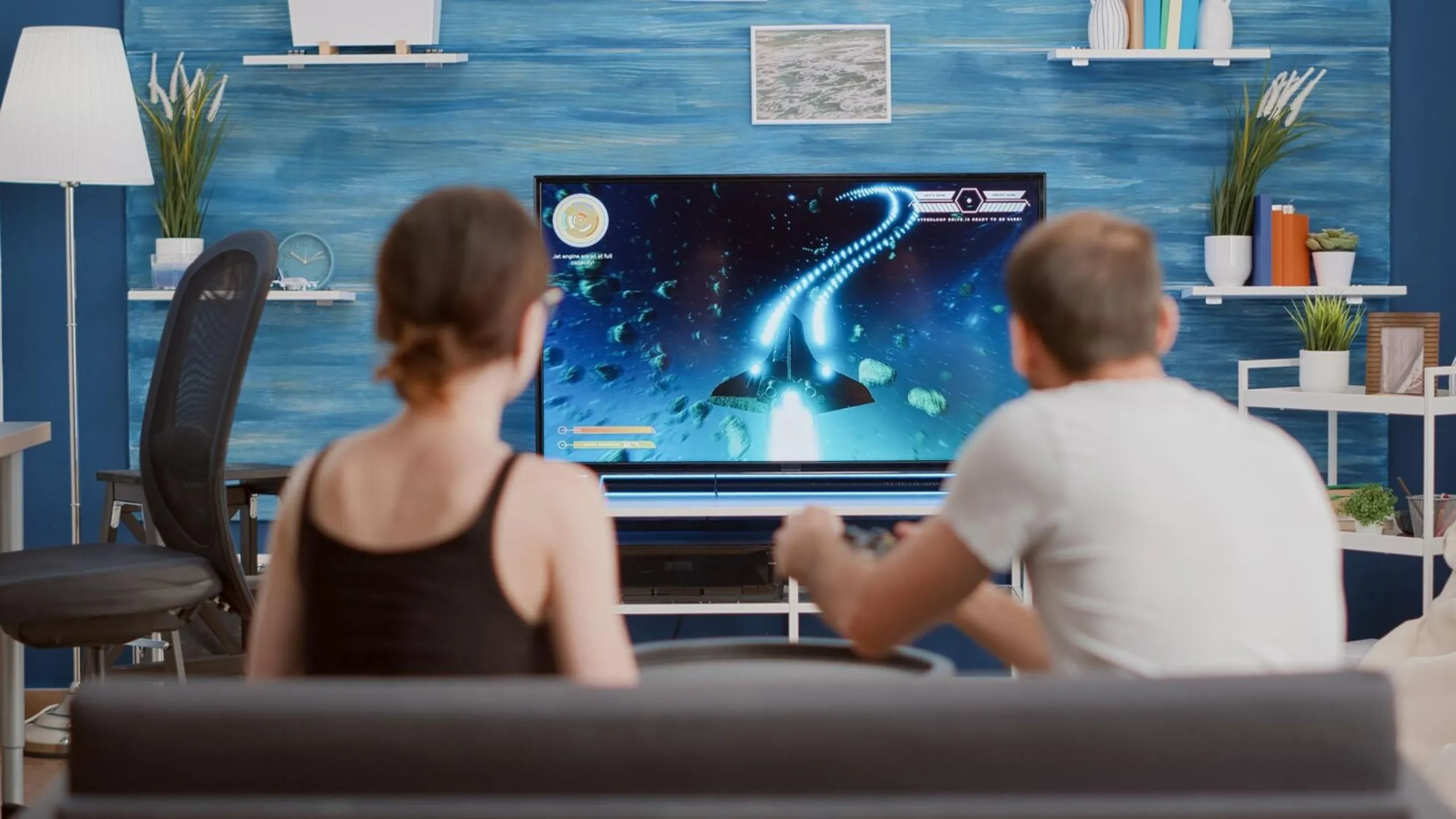
Hooking up a gaming console to your smart TV isn't just about plugging a single cord anymore; it's more about making two very capable devices work together perfectly to provide all the thrill of a high-definition game without a hitch. From opening the boxes of Playstation 5, Xbox Series X, or Nintendo Switch, the aim is to get the least delay between your command and the game reaction, while keeping the graphics quality at its best. In the time of 4K gaming and 120Hz refresh rates, making good use of the right ports and cables cannot be ignored. Besides the physical installation, this guide will take you through the necessary software changes for a fast response gaming, and the HDMI standards aspects so that you do not waste any game performance. Ready your console for the battle.
How To Connect A Gaming Console To Your Smart TV?
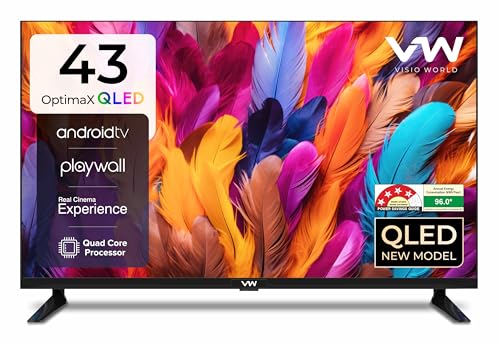
₹55990.00
₹99900
₹66990.00
₹169990
₹23999.00
₹29999
 Vetted Options
We thoroughly evaluate every product through a combination of hands-on research and insights from reputable industry sources.
Step-by-Step Connection Procedure
Setting up your console correctly ensures you get the best possible frame rates and visual clarity right from the start. Follow these precise steps:
- Placement: Position the console in an open space with at least 4-6 inches of clearance for ventilation.
- Cable Connection: Plug the HDMI 2.1 cable into the "HDMI Out" port on the console and the HDMI In (Gaming/120Hz) port on your TV.
- Power Up: Connect the power lead to a surge protector and turn on both devices.
- Input Selection: Use your TV remote to switch to the corresponding HDMI source.
- Initial Setup: Follow the console’s on-screen prompts to connect to Wi-Fi and download any necessary firmware or system updates.
Products You May Consider



The Physical Connection: HDMI and Power
Start by finding the right cable. New consoles usually include a fast HDMI cable. Connect one end to the HDMI Out on the console and the other to your TVs HDMI In. Look for a port marked 4K @ 120Hz or Game, that one works best. It supports the highest signal speed, which is HDMI 2.1. Old cables from older consoles won't handle 4K well. After linking the video, plug the power into a surge protector. That keeps the console safe from power surges. Then turn on both the console and TV. They'll connect through a quick digital sync.
You Might Also Like



Optimizing TV Settings for Low Latency
Once the gears are plugged in, your TVs settings need a quick fix for gaming. Most TVs make movies look smooth with heavy image work, but that slows down how fast actions show up. To change that, go to the picture menu and turn on game Mode. It skips extra steps so your controller moves right away. Also, look for auto Low Latency Mode, if it's there, the console can turn on game Mode on its own. For top, end screens, make sure Variable Refresh Rate is on. That stops screen tearing during fast gameplay. It seems like a small tweak, but it helps a lot during action scenes.
Products You Might Consider



Calibrating HDR and Resolution
Make colors pop and blacks deep by tuning HDR on your TV and game console. Set your TVs HDMI to "Strengthened" or "Ultra HD Deep Color" in the device manager. On your console, go to display settings, like Settings > Screen and video on PS5, and run the HDR tool. Adjust brightness until icons fade, so the console knows your TVs peak brightness. Match the output to 2160p, mainly for 4K TVs. That stops the TV from boosting the image and using extra power. It seems like this helps the picture look better and stay true to what's on screen.
More Similar Articles:
Which LED TV Models Between 10k To 20k Are Suitable For Small Sized Rooms?
Best-rated 55 Inch Smart TVs Under ₹45,000 on Amazon India
Managing Audio and Final Checks
Immersive audio is just as essential as graphics when it comes to a great gaming experience. If your audio system is a soundbar or a home theater, then you should be connecting it through the eARC (Enhanced Audio Return Channel) port on your television. This is what enables the very high bitrate audio formats such as Dolby Atmos to transmit from your game console, through the TV, and finally into your speakers with no deterioration in the sound quality. Also, in your console's audio settings, it is paramount that you choose the right output device and audio format that will complement your existing arrangement. Before gaming, it's wise to double-check for any firmware updates for your TV, as manufacturers frequently roll out patches that enhance the compatibility of TVs with newer consoles. Once you have synchronized the video, audio, and settings, your setup will indeed be at its best performance level.
 Our Core Values
Transparent, Honest Reviews
We provide straightforward insights into each product’s strengths and weaknesses, so you can make confident, informed decisions.
Trusted Brands Priority
We focus on products from reliable brands known for quality, consistency, and customer satisfaction.
Smarter Value for Your Money
We highlight products that strike the perfect balance between cost, quality, and performance, so you get true value without the extra cost.
Disclaimer: At The Daily Jagran Smart Guide, we prioritize providing up-to-date information on the latest trending commodities and goods. Links in this article are affiliate links. Please note that our product recommendations are based on independent research and analysis however, The Daily Jagran Smart Guide shall not be held liable for any claims, damages, or disputes arising under applicable laws, including the Consumer Protection Act, 2019. Any issues regarding product quality, delivery, or warranties must be directed to the respective manufacturer or seller. Furthermore, the products featured in this article are organized for reader convenience and are listed in no particular order of priority or ranking.
Faq's
- Do I need a special HDMI cable for 4K gaming?+Yes, for the best performance on PS5 or Xbox Series X, use an HDMI 2.1 (Ultra High Speed) cable. It supports 4K at 120Hz, which older cables cannot handle reliably.
- Why does my game feel heavy or slow to respond?+This is likely caused by input lag. Ensure your smart TV is in Game Mode, which turns off post-processing effects that cause delays between your controller and the screen.
- Can I connect an older console to a new Smart TV?+Most modern TVs only have HDMI ports. For older consoles using RCA (red, white, yellow) cables, you will need an AV-to-HDMI adapter to bridge the connection successfully.
You May Also Like